# AV 300 Ouellette
We have AV in the classroom, two labs, and a Seminar area.
We have multiple TVs on the cart.
**Seminar Areas and Lab:**
**Resources:**
Viewsonic commercial displays (3 numbers) in the Seminar area.
Viewsonic commercial displays (2 numbers) in each of the Lab, the North Lab, and the South Lab.
The following provides information on **Viewsonic Displays**.
### **Do Not:**
**Do not randomly switch on and off the Displays if they are not working or if they have a Red light indicator on and the Display is Black or Unresponsive.**
**Do not disconnect HDMI cables or fight with the existing cables.**
**Do not go to any other machines or displays and remove the HDMI cables, and try to connect to the not-working display, assuming it will work. In this process, you are disturbing and crippling a working environment.**
##### **What should you do?**
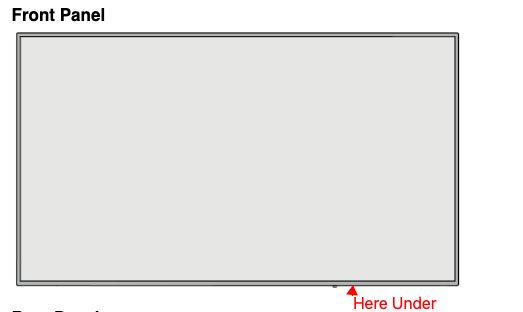
The following is the pictorial view of the displays.
[](https://help.cs.uwindsor.ca/uploads/images/gallery/2025-05/3SBimage.png)
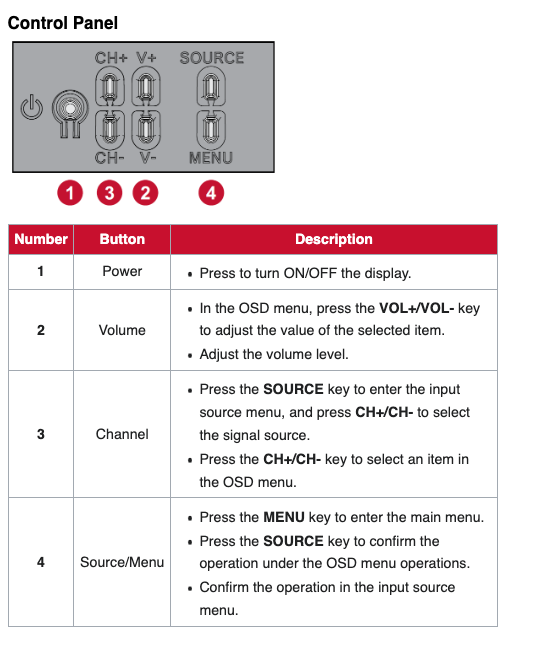
You will find the following panel.
[](https://help.cs.uwindsor.ca/uploads/images/gallery/2025-05/5C7image.png)
The following is the process you should follow.
1) The screen is black, unresponsive, and the light is Red; the issue could be with power, connections, or internal components.
2) First, ensure the power cable is securely plugged into both the display and a working outlet.
3) Try a different power cable and outlet to rule out power issues.
4) If the screen still doesn't display, try a power reset by unplugging the power cable, holding the power button for 30 seconds (button number 1 in the above picture), and then plugging it back in.
5) If that doesn't work, you might need to check the video cable and ensure it's properly connected. If the issue persists, you might need to contact CS support for further troubleshooting.
6\) Please get in touch with the staff and report the problem. If the staff has a spare cable, you can ask and try it out.