# How to Set Dynamic (DHCP) IP Address - Mac OS
##### 1. Open System Preferences
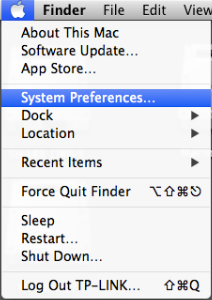
Click the **Apple** icon, from the **Apple** drop-down list, select **System Preferences**.
[](https://help.cs.uwindsor.ca/uploads/images/gallery/2024-05/DPNimage.png)
##### 2. Open Network Settings
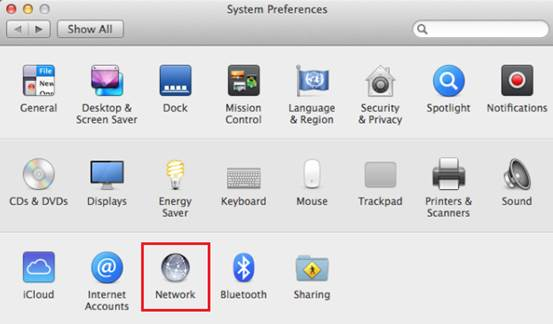
Click the **Network** icon.
[](https://help.cs.uwindsor.ca/uploads/images/gallery/2024-05/teBimage.png)
##### 3. Select Your Wired Network Interface (Ethernet)
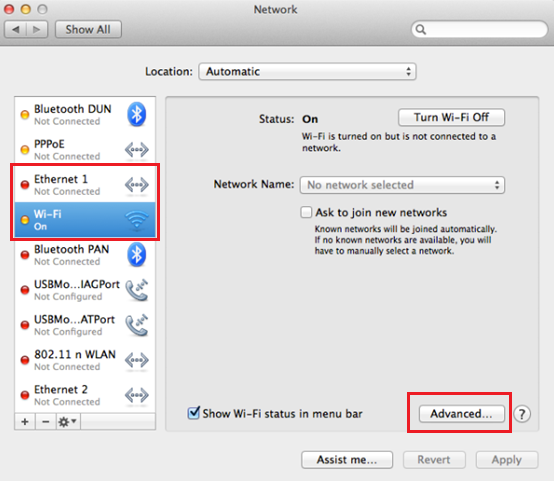
In the left column, select **Ethernet** (for wired connection) or **Wi-Fi**(for wireless connection), then Click the **Advanced**.
Note: in this article we want to change the wired connection, therefore, click on **Ethernet**
[](https://help.cs.uwindsor.ca/uploads/images/gallery/2024-05/Yzbimage.png)
##### 4. Select TCP/IP Protocol
Click **TCP/IP**.
[](https://help.cs.uwindsor.ca/uploads/images/gallery/2024-05/LJ7image.png)
##### 5. Configure IPv4
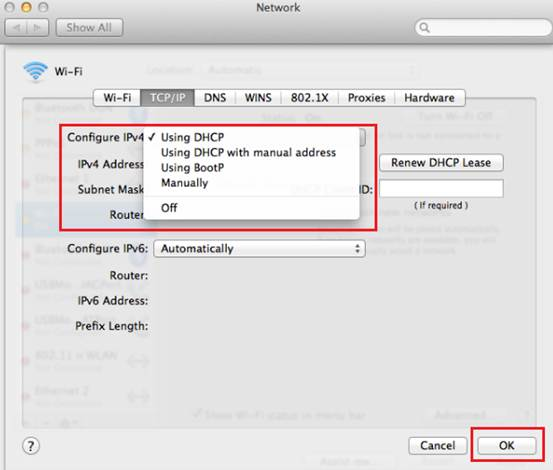
From the **Configure IPv4** drop-down list, select **Using DHCP**, then click the **OK** button.
[](https://help.cs.uwindsor.ca/uploads/images/gallery/2024-05/fmlimage.png)
More Info:
- [Use DHCP or a manual IP address on Mac - Apple Support (CA)](https://support.apple.com/en-ca/guide/mac-help/mchlp2718/mac)