Jupyter Notebook Basics
CS Jupyter Lab Server is available at https://djnb.cs.uwindsor.ca/
Create a New Notebook
-
In the top-right corner of the Jupyter dashboard, click the File New Notebook.
-
Select Python 3 (or Python 3 [ipykernel]).
-
A new tab will open containing your blank Jupyter Notebook (
.ipynb).
-
Verification: Ensure a new notebook tab opens with an empty cell and the kernel status circle in the top right turns solid (indicating it is connected).
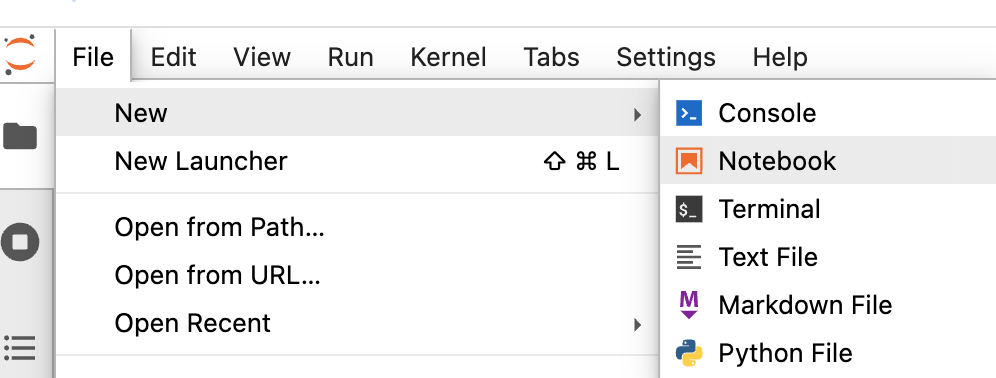
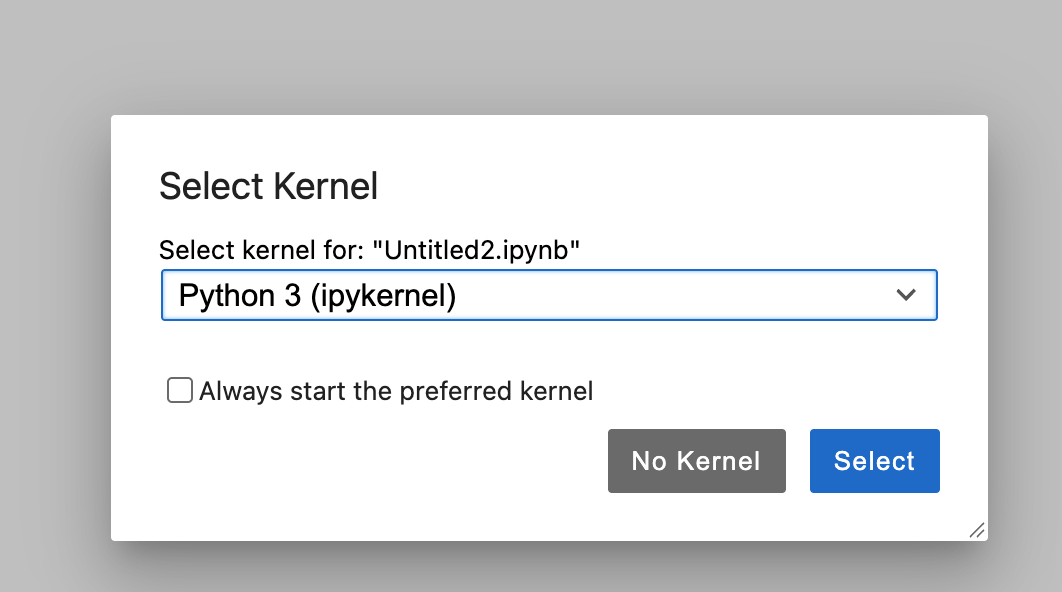
Press Select
Understand Notebook Cells
A Jupyter Notebook is made up of individual blocks called cells. The two primary cell types you will use are:
-
Code Cells: Used to write and execute programming logic (default is Python). Outputs appear directly below the cell.
-
Markdown Cells: Used to write formatted narrative text, explanations, headings, and bullet points using Markdown syntax.
-
Verification: Click the cell dropdown menu in the toolbar to toggle any cell between "Code" and "Markdown".
-
Click on the first empty cell (which defaults to a code cell).
-
Type a simple print statement:
Pythonprint("Hello, Jupyter!") -
Run the cell by pressing Shift + Enter on your keyboard (or clicking the Play ▶ button in the toolbar).
-
Verification: Confirm that the text
Hello, Jupyter!appears directly underneath the code cell.
Add Text Using Markdown
-
Insert a new cell below by clicking the + button in the toolbar or pressing B while in command mode.
-
Change the cell type to Markdown.
-
Type some formatted text:
Markdown# My Notes This is a **bold** explanation of my code workflow. -
Press Shift + Enter to render the text.
-
Verification: Check that the Markdown code converts into a clean heading and bold text instead of raw code.
Essential Keyboard Shortcuts
Jupyter operates in two modes: Edit Mode (typing inside a cell, green border) and Command Mode (navigating cells, blue border). Press Esc to enter command mode, and Enter to edit.
-
Shift + Enter: Run current cell and move to the next. -
A: Insert a new cell above the current cell. -
B: Insert a new cell below the current cell. -
M: Change active cell to Markdown. -
Y: Change active cell to Code.
For further information visit https://jupyterlab.readthedocs.io/en/latest/