
How to Set Dynamic (DHCP) IP Address - Mac OS
1. Open System Preferences
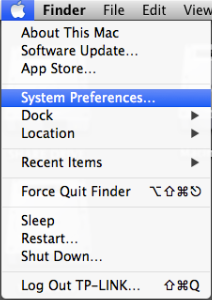
Click the Apple icon, from the Apple drop-down list, select System Preferences.
2. Open Network Settings
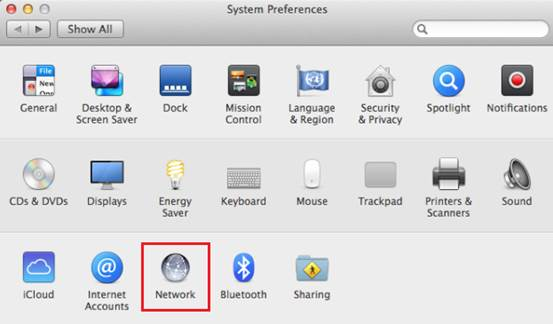
Click the Network icon.
3. Select Your Wired Network Interface (Ethernet)
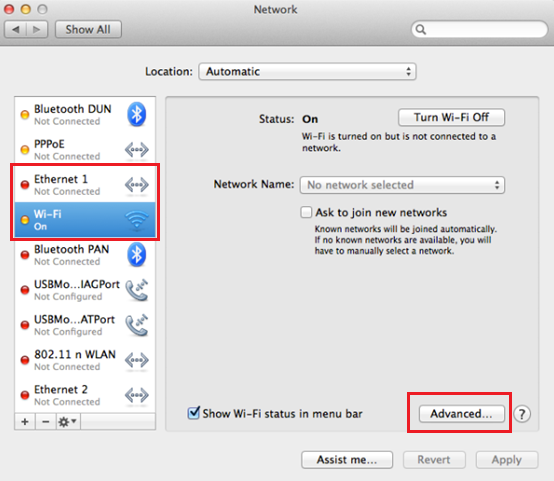
In the left column, select Ethernet (for wired connection) or Wi-Fi(for wireless connection), then Click the Advanced.
Note: in this article we want to change the wired connection, therefore, click on Ethernet
4. Select TCP/IP Protocol
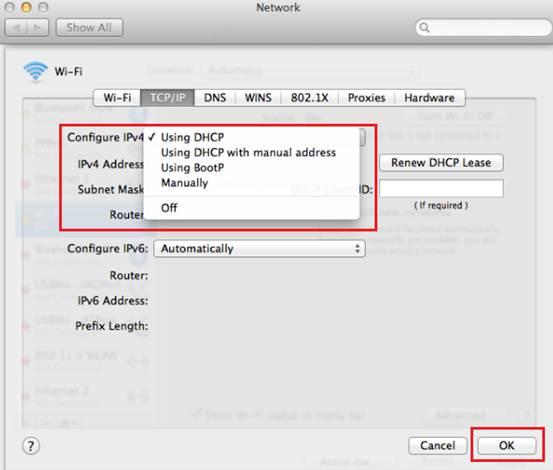
Click TCP/IP.

5. Configure IPv4
From the Configure IPv4 drop-down list, select Using DHCP, then click the OK button.
More Info: