
NoMachine
The School of Computer Science runs NoMachine Terminal Server.
The client connects to a server named delta.cs.uwindsor.ca.
Remote desktop via a Web Browser
Since the School of Computer Science has a NoMachine Enterprise license, the delta.cs.uwindsor.ca remote desktop can be accessed directly from the browser through the link provided!
NX (using the NoMachine Enterprise Client)
Using the NX protocol (not SSH)
You can download NoMachine Enterprise Client from here.

Edit a connection to use the NX protocol
You should use the NX protocol, but only if you are connected to the VPN!
Edit and save the connection to modify the protocol it uses.
X11
NoMachine has an embedded X server. If a local X server cannot be found, NoMachine will use its own display service.
Display Resolution
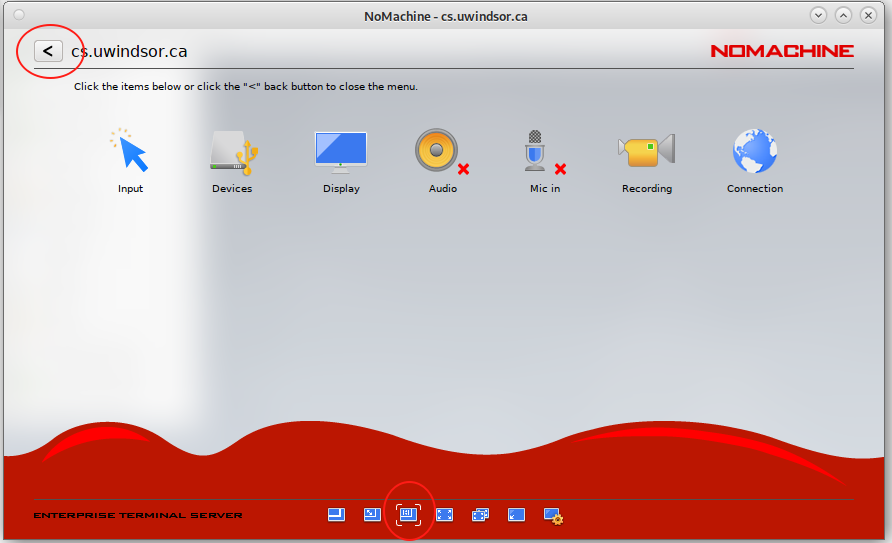
Resize the remote desktop to match the client's resolution
You can change connection settings by pressing Ctrl-Alt-0 (Ctrl-Alt-ZERO) any time you are connected to a session.
Select the Resize remote display icon (circled at the bottom of the window), then press the "<" icon to return to the desktop.
This allows the remote screen resolution to dynamically adjust as you resize the window, matching the quality of your computer display.
Troubleshooting
NoMachine Client is hanging
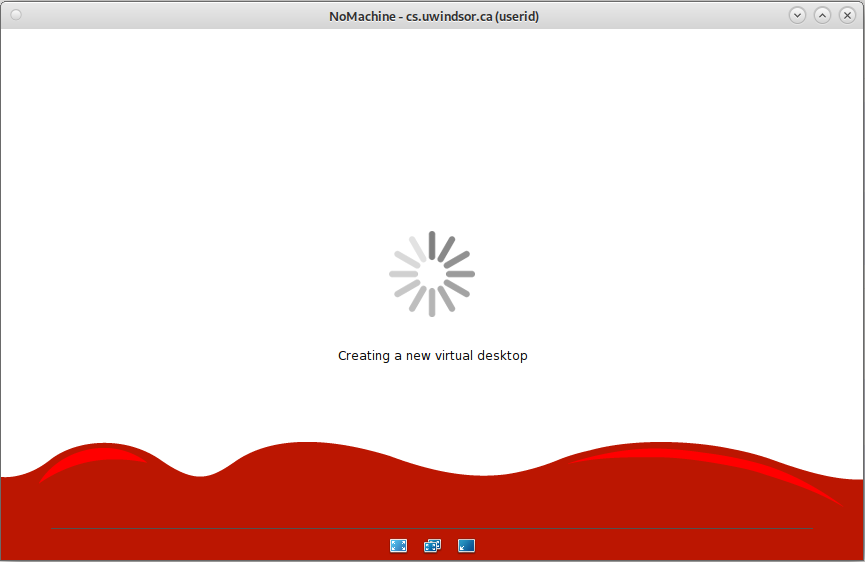
NoMachine Hangs
It should take less than 10 seconds to reconnect to a running virtual desktop, but it may take up to a minute while Creating a new virtual desktop is displayed.
If NoMachine just spins for minutes but never connects, the problem may be related to the FUSE (Filesystem in Userspace) interface with GVfs (GNOME Virtual file system) on the server you are trying to connect to which causes your login to fail. This interface is created by Systemd for you in the /run/user/`id -u` directory, where `id -u` is your numeric uid.
 |
A detailed discussion of FUSE, GVfs and Systemd is beyond the scope of this section. I have to thank Sanjay for recently reminding me about this issue.
Application Menu is missing

Run this command from a terminal window (right-click the background and choose Open in terminal):
mate-panel --replace &
The ampersand is required to run the command in the background, independently of the terminal process from which you ran it.